If all of the above doesn't Work I have a full proof Working solution :)
Add this Attribute to your script Manager
EnablePartialRendering="true"
  Like below:
  <ajaxToolkit:ToolkitScriptManager ID="_scriptManager" runat="server" ScriptMode="Release" CompositeScript-ScriptMode="Release" AllowCustomErrorsRedirect="False"
     EnablePartialRendering="true" >
   </ajaxToolkit:ToolkitScriptManager>
 And in code behind write this code
  Protected Sub _scriptManager_HandleErrors(ByVal sender As Object, ByVal e As AsyncPostBackErrorEventArgs) Handles _scriptManager.AsyncPostBackError
     If e IsNot Nothing AndAlso e.Exception IsNot Nothing Then
       Logger.Current.LogError(e.Exception.Message, e.Exception)
       'Changed to catch the Error in Master Page Ajax Error Control Sys.webforms
       _scriptManager.AsyncPostBackErrorMessage = e.Exception.Message
     End If
   End Sub
If you have a VPS or dedicated server, you got full access to it and
normally shouldn’t run into any problems. But when you’re using shared
webhosting, your actions are very limited. This post describes the
errors you’ll most likely run into the first time you try this, and how
to solve them.
You can either deploy from within Visual Studio or FTP the files to
your host. If you hit the URL to your website, you’ll most likely get
following configuration error with the according web.config fragment
below: Parser Error Message: Could not load file or assembly
'System.Data.SqlServerCe, Version=4.0.0.0, Culture=neutral,
PublicKeyToken=89845dcd8080cc91' or one of its dependencies. The system
cannot find the file specified.
You get this error because most providers don’t have SQL CE 4.0
assemblies installed (yet?). This means you’ll have to 'bin deploy' the
assemblies together with your site. Visual Studio 2010 provides a "Add
Deployable Dependencies..." context menu item, which let you choose to
add the required assemblies for Razor or SQL Server Compact to the Bin
folder.
With some 'luck' you hit the next error once you solved the problem above and refreshed the page: Parser Error Message: Access to the database file is not allowed. [ 1884,File name = somepath\App_Data\YourDatabase.sdf,SeCreateFile ]
For this error you have to give read + write access
to the App_Data folder, usually done in the File Manager of your hosting
control panel. If you got this error on your private server, check if
the service running the Application Pool (e.g. Network Service) has
these rights on the folder. You will also have to add following line of
code (e.g. in the global.asax file):
This is because, by default, SQL CE blocks access when the connection
is opened under the ASP.NET networking process. Once I ran through
these steps, I got everything up and running without any hiccups.
Today I upgraded our ASP.Net 2.0 project from Visual Studio 2008 to Visual Studio 2010 targeting .Net 4.0.
I ran into some issues and just wanted to list them here so others might be forewarned.
Our solution has 5 web applications and many other class library projects. When the upgrade "wizard" was running it asked me with a prompt dialog if I wanted the web application project to target .Net 4.0 instead of .Net 2.0. There is also a check box on that dialog "Do this for all other web projects" which I checked.
However, after the upgrade was completed I found that none of the web application projects other than the initial one it asked me about had been set to .Net 4.0. I had to make these changes manually.
Also, none of the other class libraries were set to .Net 4.0 either. My preference would be that it asks once for the whole solution. I can't imagine that many people would want some projects targeting 2.0 and some targeting 4.0 in the same solution.
When setting the targeting for C# project the option is on the application page of the properties designer. However, in VB projects to get to the targeting selection you have to change to the compile page then click on the "Advanced Options..." dialog to get to the targeting selection.
the membership, profile, role providers have been moved from the System.Web assembly to the System.Web.ApplicationServices. When you modify the target version on your Web application projects to 4.0 this reference is added for you. However, if you have class libraries that use those provider classes you'll have to add this reference to the project yourself.
While we are moving to Entity Framework our current primary data access method is currently typed Datasets and TableAdapters. (Yes I know, it was not my design). Be aware that some of the dataset classes have been moved into System.Data.DataSetExtensions. This reference will be added to the classes where you define your typed datasets when you change the targeting to version 4.0. However it will not be added to projects where you consume your datasets and tableadapters. You must add this reference manually.
It appears that a change was made to the MSDataSetGenerator custom tool. One of our datasets had a "Name" property that was misspelled and didn't match the name of the .XSD file. In .Net 2.0 the dataset's name was used. It appears that in .Net 4 the dataset name property is used. Fixing the typo in the dataset name property resolved all the errors where the dataset was not found.
Well that's about it. All in all upgrading to VS 2010 and .Net framework 4 is not too painful. Of course I am only to the point where it compiles without error. I expect I will run into some issues when we start testing.
Today I upgraded our ASP.Net 3.5 project from Visual Studio 2008 to Visual Studio 2010 targeting .Net 4.0.
I ran into some issues and just wanted to list them here so others might be forewarned.
Microsoft has published a complete list of issues migrating from .NET Framework 3.5 SP1 to .NET 4.0. The list contains changes in 6 domains: Core, ASP.NET, ADO.NET, WCF, WPF, and XML.
.NET applications compiled for .NET 3.5 run without any problem if .NET Framework 4.0 is installed on the same machine because the two frameworks are installed in parallel and do not interfere with each other. But there are problems if an application is recompiled for .NET 4.0 because Microsoft’s latest runtime introduces some breaking changes but also some enhancements.
The list of changes is relatively long, so we won’t cover them here. Some of them are:
Core
Application configuration file name change
“If your application configuration file is named application-name.config, rename it to application-name.exe.config. For example, renameMyApp.config toMyApp.exe.config.”
“Skip(0) is no longer ignored in LINQ to SQL queries. As a result, queries that have this method might behave differently. For example, in some cases, an OrderBy clause is required with Skip(0) and the query will now throw a NotSupportedException exception if the OrderBy clause was not included.”
WCF
Configuration files
WCF support merging across config files.
Service hosting
“You can no longer specify the configuration element at the service level by adding the attribute allowDefinition="MachineToApplication" to the element definition.Specifying the element at the service level is technically incorrect and causes inconsistent behavior.”
The identity of an application pool is the name of the service account under which the application pool's worker process runs. By default, application pools operate under the Network Service user account, which has low-level user rights. You can configure application pools to run under one of the built-in user accounts in the Windows Server® 2008 operating system. For example, you can specify the Local System user account, which has higher-level user rights than either the Network Service or Local Service built-in user accounts. However, remember that running an application pool under an account that has high-level user rights is a serious security risk.
You can also configure a custom account to serve as an application pool's identity. Any custom account you choose should have only the minimum rights that your application requires. A custom account is useful in the following situations:
•When you want to improve security and make it easier to trace security events to the corresponding application.
•When you are hosting Web sites for multiple customers on a single Web server. If you use the same process account for multiple customers, source code from one customer's application may be able to access source code from another customer's application. In this case, you should also configure a custom account for the anonymous user account.
•When an application requires rights or permissions in addition to the default permissions for an application pool. In this case, you can create an application pool and assign a custom identity to the new application pool.
User Interface
To use the UI
1.Open IIS Manager. For information about opening IIS Manager, see Open IIS Manager (IIS 7).
2.In the Connections pane, expand the server node and click Application Pools.
3.On the Application Pools page, select the application pool for which you want to specify an identity, and then click Advanced Settings in the Actions pane.
4.For the Identity property, click the ... button to open the Application Pool Identity dialog box.
5.If you want to use a built-in account, select the Built-in account option and select an account from the list.
6.If you want to use a custom identity, select the Custom account option and click Set to open the Set Credentials dialog box. Then type the custom account name in the User name text box, type a password in the Password text box, retype the password in the Confirm password text box, and then click OK.
7.Click OK to dismiss the Application Pool Identity dialog box.
Command Line
To specify the account identity for an application pool to use, use the following syntax:
appcmd set config /section:applicationPools /[name='string'].processModel.identityType:SpecificUser
NetworkService
LocalService
LocalSystem
The variable string is the name of the application pool that you want to configure. For example, to change the identity type from Network Service to Local Service for an application pool named Marketing, type the following at the command prompt, and then press ENTER:
appcmd set config /section:applicationPools /[name='Marketing'].processModel.identityType:LocalService
To configure an application pool to use a custom identity, use the following syntax:
appcmd set config /section:applicationPools /[name='string'].processModel.identityType:SpecificUser
NetworkService
LocalService
LocalSystem /[name='string'].processModel.userName:string /[name='string'].processModel.password:string
The variable name string is the name of the application pool that you want to configure, userName string is the user name of the account that you want the application pool to use, and password string is the password for the account. For example, to configure an application pool named Marketing to use a custom identity with a user name of Marketer and a password of M@dr1d$P, type the following at the command prompt, and then press ENTER:
appcmd set config /section:applicationPools /[name='Marketing'].processModel.identityType:SpecificUser /[name='Marketing'].processModel.userName:Marketer /[name='Marketing'].processModel.password: M@dr1d$P
For more information about Appcmd.exe, see Appcmd.exe (IIS 7).
Sys.WebForms.PageRequestManagerParserErrorException - what it is and how to avoid it
If you've used the Microsoft ASP.NET AJAX UpdatePanel control, there's a good chance you've hit the "Sys.WebForms.PageRequestManagerParserErrorException" error.
What's a PageRequestManagerParserErrorException?
The UpdatePanel control uses asynchronous postbacks to control which parts of the page get rendered. It does this using a whole bunch of JavaScript on the client and a whole bunch of C# on the server. Asynchronous postbacks are exactly the same as regular postbacks except for one important thing: the rendering. Asynchronous postbacks go through the same life cycles events as regular pages (this is a question I get asked often). Only at the render phase do things get different. We capture the rendering of only the UpdatePanels that we care about and send it down to the client using a special format. In addition, we send out some other pieces of information, such as the page title, hidden form values, the form action URL, and lists of scripts.
As I mentioned, this is rendered out using a special format that the JavaScript on the client can understand. If you mess with the format by rendering things outside of the render phase of the page, the format will be messed up. Perhaps the most common way to do this is to call Response.Write() during Page's Load event, which is something that page developers often do for debugging purposes.
The client ends up receiving a blob of data that it can't parse, so it gives up and shows you a PageRequestManagerParserErrorException. Here's an example of what the message contains:
---------------------------
Microsoft Internet Explorer
---------------------------
Sys.WebForms.PageRequestManagerParserErrorException: The message received from the server could not be parsed. Common causes for this error are when the response is modified by calls to Response.Write(), response filters, HttpModules, or server trace is enabled.
Details: Error parsing near 'Hello, World!106
upd'.
---------------------------
OK
---------------------------
If you ask me, this error message is not all that bad. After all, I'm the one that made it :) The details indicate what was being parsed when it decided to give up. You can see the part of the text from my Response.Write(), and immediately after that is part of the special format I keep mentioning.
Why do I keeping getting a PageRequestManagerParserErrorException?
Well, chances are you're doing one of the things mentioned in the error message. Here are the most common reasons and why they don't work:
1.Calls to Response.Write():
By calling Response.Write() directly you are bypassing the normal rendering mechanism of ASP.NET controls. The bits you write are going straight out to the client without further processing (well, mostly...). This means that UpdatePanel can't encode the data in its special format.
2.Response filters:
Similar to Response.Write(), response filters can change the rendering in such a way that the UpdatePanel won't know.
3.HttpModules:
Again, the same deal as Response.Write() and response filters.
4.Server trace is enabled:
If I were going to implement trace again, I'd do it differently. Trace is effectively written out using Response.Write(), and as such messes up the special format that we use for UpdatePanel.
5.Calls to Server.Transfer():
Unfortunately, there's no way to detect that Server.Transfer() was called. This means that UpdatePanel can't do anything intelligent when someone calls Server.Transfer(). The response sent back to the client is the HTML markup from the page to which you transferred. Since its HTML and not the special format, it can't be parsed, and you get the error.
How do I avoid getting a PageRequestManagerParserErrorException?
To start with, don't do anything from the preceding list! Here's a matching list of how to avoid a given error (when possible):
1.Calls to Response.Write():
Place an or similar control on your page and set its Text property. The added benefit is that your pages will be valid HTML. When using Response.Write() you typically end up with pages that contain invalid markup.
2.Response filters:
The fix might just be to not use the filter. They're not used very often anyway. If possible, filter things at the control level and not at the response level.
3.HttpModules:
Same as response filters.
4.Server trace is enabled:
Use some other form of tracing, such as writing to a log file, the Windows event log, or a custom mechanism.
5.Calls to Server.Transfer():
I'm not really sure why people use Server.Transfer() at all. Perhaps it's a legacy thing from Classic ASP. I'd suggest using Response.Redirect() with query string parameters or cross-page posting.
Another way to avoid the parse error is to do a regular postback instead of an asynchronous postback. For example, if you have a button that absolutely must do a Server.Transfer(), make it do regular postbacks. There are a number of ways of doing this:
1.The easiest is to simply place the button outside of any UpdatePanels. Unfortunately the layout of your page might not allow for this.
2.Add a PostBackTrigger to your UpdatePanel that points at the button. This works great if the button is declared statically through markup on the page.
3.Call ScriptManager.RegisterPostBackControl() and pass in the button in question. This is the best solution for controls that are added dynamically, such as those inside a repeating template.
Summary
I hope I've answered a lot of questions here and not angered too many of you. We're looking at ways to improve some of these situations in the next version of ASP.NET, but of course there are no guarantees. If you avoid changing the response stream, you're good to go. If you absolutely must change the response stream, simply don't do asynchronous postbacks.
' You can Also Try this instead of response.redirect or server.transfer
ASP.NET MVC is a new framework for building Web applications developed by Microsoft; it was found that the traditional WebForm abstraction, designed in 2000 to bring a “desktop-like” development experience to the Web, was sometimes getting in the way, and could not provide proper separation of concerns, so it was difficult to test. Therefore a new, alternative framework was built in order to address the changing requirements of developers. It was built with testability, extensibility and freedom in mind.
I will first explain how to setup your environment to work with ASP.NET MVC and how to create an ASP.NET MVC Web application. Then it will go deeper in details explaining the various components of the framework and showing the structure of the main API. Finally, it will show a sample of standard operation that developers can do with ASP.NET MVC.
PREREQUISITES
The ASP.NET MVC is a new framework, but it’s based on ASP.NET core API: in order to understand and use it, you have to know the basic concepts of ASP.NET. Furthermore, since it doesn’t abstract away the “Web” as the traditional WebForm paradigm does, you have to know HTML, CSS and JavaScript in order to take full advantage of the framework.
INSTALLATION
To develop a Web site with ASP.NET MVC, all you need is Visual Studio 2008 and the .NET Framework 3.5 SP1. If you are an hobbyist developer you can use Visual Web Developer 2008 Express Edition, which can be downloaded for free at the URL: http://www.microsoft.com/express/vwd/.
You also need to install the ASP.NET MVC library, which can be downloaded from the official ASP.NET Web site at http://www.asp.net/mvc/download.
You can also download everything you need, the IDE, the library, and also a free version of SQL Server (Express Edition) through the Web Platform Installer, available at: http://www.microsoft.com/web/.
THE MVC PATTERN
As you probably have already guessed from the name, the framework implements the Model View Controller (MVC) pattern.
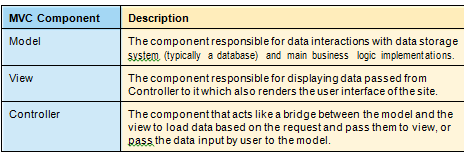
The UI layer of an application is made up of 3 components:
And the flow of an operation is depicted in the diagram:
1. The request hits the Controller.
2. The Controller delegates the execution of “main” operation to the Model.
3. The Model sends the results back to the Controller.
4. The Controller formats the data and sends them to the View.
5. The View takes the data, renders the HTML page, and sends it to the browser that requested it.
BUILD YOUR FIRST APPLICATION Starting the developing of an ASP.NET MVC application is easy. From Visual Studio just use the “File > New Project” menu command, and select the ASP.NET MVC Project template (as shown in the following figure).
Type in the name of the project and press the “OK” button. It will ask you whether you want to create a test project (I suggest choosing Yes), then it will automatically create a stub
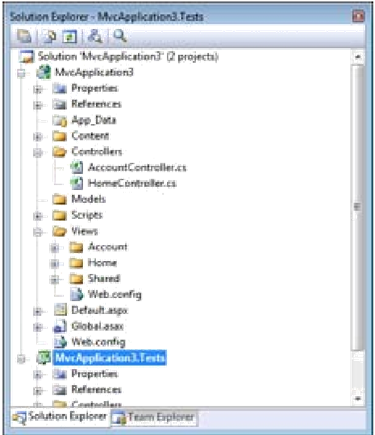
ASP.NET MVC Web site with the correct folder structure that you can later customize for your needs.
As you can see, the components of the applications are well-separated in different folders.
The Fundamentals of ASP.Net MVC
One of the main design principles of ASP.NET MVC is “convention over configuration”, which allows components to fit nicely together based on their naming conventions and location inside the project structure.
The following diagram shows how all the pieces of an ASP.NET MVC application fit together based on their naming conventions:
ROUTING
The routing engine is not part of the ASP.NET MVC framework, but is a general component introduced with .NET 3.5 SP1.
It is the component that is first hit by a request coming from the browser. Its purpose is to route all incoming requests to the correct handler and to extrapolate from the URL a set of data that will be used by the handler (which, in the case of an ASP.NET MVC Web application, is always the MvcHandler) to respond to the request.
To accomplish its task, the routing engine must be configured with rules that tell it how to parse the URL and how to get data out of it. This configuration is specified inside the RegisterRoutes method of the Global.asax file, which is in the root of the ASP.NET MVC Web application.
The snippet above shows the default mapping rule for each ASP.NET MVC application: every URL is mapped to this route, and the first 3 parts are used to create the data dictionary sent to the handler. The last parameter contains the default values that must be used if some of the URL tokens cannot be populated. This is required because, based on the default convention, the data dictionary sent to the MvcHandler must always contain the controller and the action keys.
Examples of other possible route rules:
MODEL
ASP.NET MVC, unlike other MVC-based frameworks like Ruby on Rails (RoR), doesn’t enforce a convention for the Model. So in this framework the Model is just the name of the folder where you are supposed to place all the classes and objects used to interact with the Business Logic and the Data Access Layer. It can be whatever you prefer it to be: proxies for Web services, ADO.NET Entity Framework, NHibernate, or anything that returns the data you have to render through the views
CONTROLLER
The controller is the first component of the MVC pattern that comes into action. A controller is simply a class that inherits from the Controller base class whose name is the name of a controller and ends with “Controller,” and is located in the Controllers folder of the application folder structure. Using that naming convention, the framework automatically calls the specified controller based on the parameter extrapolated by the URL.
The real work, however, is not done by the class itself, but by the method that lives inside it. These are called Action Methods.
ACTION METHOD
An action method is nothing but a public method inside a Controller class. It usually returns a result of type ActionResult and accepts an arbitrary number of parameters that contain the data retrieved from the HTTP request.
Here is what an action method looks like:
The ViewData is a hash-table that is used to store the variables that need to be rendered by the view: this object is automatically passed to the view through the ActionResult object that is returned by the action. Alternatively, you can create your own view model, and supply it to the view.
This second approach is better because it allows you to work with strongly-typed classes instead of hash-tables indexed with string values. This brings compile-time error checking and Intellisense.
Once you have populated the ViewData or your own custom view model with the data needed, you have to instruct the framework on how to send the response back to the client. This is done with the return value of the action, which is an object that is a subclass of ActionResult. There are various types of ActionResult, each with its specific way to return it from the action.
MODEL BINDER
Using the ActionResults and the ViewData object (or your custom view model), you can pass data from the Action to the view. But how can you pass data from the view (or from the URL) to the Action? This is done through the ModelBinder. It is a component that retrieves values from the request (URL parameters, query string parameters, and form fields) and converts them to action method parameters.
As everything in ASP.NET MVC, it’s driven by conventions: if the action takes an input parameter named Title, the default Model Binder will look for a variable named Title in the URL parameters, in the query string, and among the values supplied as form fields.
But the Model Binder works not only with simple values (string and numbers), but also with composite types, like your own objects (for example the ubiquitous User object). In this scenario, when the Model Binder sees that an object is composed by other sub-objects, it looks for variables whose name matches the name of the properties of the custom type.
Here it’s worth taking a look at a diagram to make things clear:
VIEW
The next and last component is the view. When using the default ViewEngine (which is the WebFormViewEngine) a view is just an aspx file without code-behind and with a different base class.
Views that are going to render data passed only through the ViewData dictionary have to start with the following Page directive:
If the view is also going to render the data that has been passed via the custom view model, the Page directive is a bit different, and it also specifies the type of the view model:
You might have noticed that, as with all normal aspx files, you can include a view inside a master page. But unlike traditional Web forms, you cannot use user controls to write your HTML markup: you have to write everything manually. However, this is not entirely true: the framework comes with a set of helper methods to assist with the process of writing HTML markup.
You’ll see more in the next section.
Another thing you have to handle by yourself is the state of the application: there is no ViewState and no Postback.
HTML HELPER
You probably don’t want to go back writing the HTML manually, and neither does Microsoft want you to do it. Not only to help you write HTML markup, but also to help you easily bind the data passed from the controller to the view, the ASP.NET MVC Framework comes with a set of helper methods collectively called HtmlHelpers. They are all methods attached to the Html property of the ViewPage. For example, if you want to write the HTML markup for a textbox you just need to write:
<%= Html.Textbox(“propertyName”)%>
And this renders an HTML input text tag, and uses the value of the specified property as the value of the textbox. When looking for the value to write in the textbox, the helper takes into account both the possibilities for sending data to a view:
It first looks inside the ViewData hash-table for a key with the name specified, and then looks inside the custom view model, for a property with the given name. This way you don’t have to bother assigning values to input fields, and this can be a big productivity boost, especially if you have big views with many
fields.
Let’s see the HtmlHelpers that you can use in your views:
As alternative to writing Html.BeginForm and Html.CloseForm methods, you can write an HTML form by including all its elements inside a using block:
<% using(Html.BeginForm(“Save”)) { %> <!—all form elements here --> <% } %>
To give you a better idea of how a view that includes an editing form looks like, here is a sample of a complete view for editing an address book element:
But there is more: bundled with Visual Studio there is a template engine (made T4 as in Text Template Transformation Toolkit) that helps automatically generate the HTML of your views based on the ViewModel that you want to pass to the view.
The “Add View” dialog allows you to choose with which template and based on which class you want the views to be generated
What these templates do is mainly iterating over all the properties of the ViewModel class and generating the same code you would have probably written yourself, using the HtmlHelper methods for the input fields and the validation messages.
For example, if you have a view model class with two properties, Title and Description, and you choose the Edit template, the resulting view will be:
The last part of ASP.NET MVC that is important to understand is AJAX. But it’s also one of the easiest aspects of the framework.
First, you have to include the script references at the top of the page where you want to enable AJAX (or in a master page if you want to enable itfor the whole site):
And then you can use the only 2 methods available in the AjaxHelper: ActionLink and BeginForm.
They do the exact same thing as their HtmlHelper counterpart, just asynchronously and without reloading the page. To make the AJAX features possible, a new parameter is added to configure how the request and the result should be handled. It’s called AjaxOptions and is a class with the following properties:
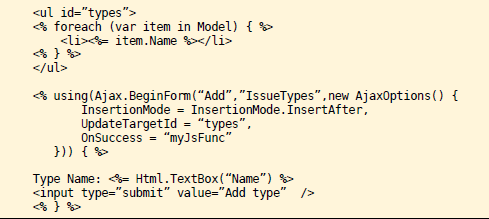
For example, here is a short snippet of code that shows how to update a list of items using the AJAX flavor of the BeginForm method:
The AJAX call will be sent to the Add action inside the IssueType controller. Once the request is successful, the result sent by the controller will be added after all the list items that are inside the types element. And then the myJsFunc will be executed. But what the ASP.MVC library does is just enabling these two methods: if you want more complex interactions you have to use either the AJAX in ASP.NET library or you can use jQuery, which ships as part of the ASP.NET MVC library.
If you want to use the AJAX in ASP.NET library, you don’t have to do anything because you already referenced it in order to use the BeginForm method, but if you want to use jQuery, you have to reference it as well.
One benefit of having the jQuery library as part of the ASP.NET MVC project template is that you gain full Intellisense support. But there is an extra step to enable it: you have to reference the jQuery script both with the absolute URL (as above) needed by the application and with a relative URL, which is needed by the Intellisense resolution engine. So, at the end, if you want to use jQuery and enable Intellisense on it, you have to add the following snippet: